Decide what each old page should become
Shopify 301 redirects send visitors and search engines from an old address to its permanent replacement. Use them for changed product URLs, renamed collections, moved blog posts and replaced guides or information pages. The starting question is the same: what did the old page offer, and where can someone find that information or range now?
A temporarily unavailable item may still deserve a useful product page with clear stock information and related options. A discontinued model with a direct successor may justify a redirect. Those are different customer situations, even when both products are currently unavailable.
| Situation | A sensible starting point |
|---|---|
| Temporarily out of stock | Assess keeping the page useful, with accurate stock information. |
| Permanently replaced by a close successor | Consider a permanent redirect to that replacement. |
| Product removed, relevant range still exists | Assess whether the collection satisfies the visitor’s original need. |
| No useful replacement remains | Consider a not-found response rather than an unrelated destination. |
| Collection renamed or reorganised | Match the old range to the most relevant new collection. |
| Blog post updated at a new address | Send readers to the replacement article covering the same topic. |
| Several guides merged | Check that the combined guide answers the needs of each old page. |
A guide might live at /pages/... or /blogs/journal/.... Use its real storefront path. Moving a buying guide into a blog does not mean it should redirect to a product just because both mention the same item.
Create the redirect in Shopify
Start in a spreadsheet, using Excel or Google Sheets. Prepare two columns named Redirect from and Redirect to. Put each old path next to its final replacement. Check the new page on the public storefront, not inside Shopify admin.
| Redirect from | Redirect to |
|---|---|
| /products/wool-hat-old | /products/wool-hat-new |
| /collections/winter-accessories | /collections/cold-weather-accessories |
| /blogs/journal/old-buying-guide | /blogs/journal/updated-buying-guide |
| /pages/hat-care | /blogs/journal/how-to-care-for-wool-hats |
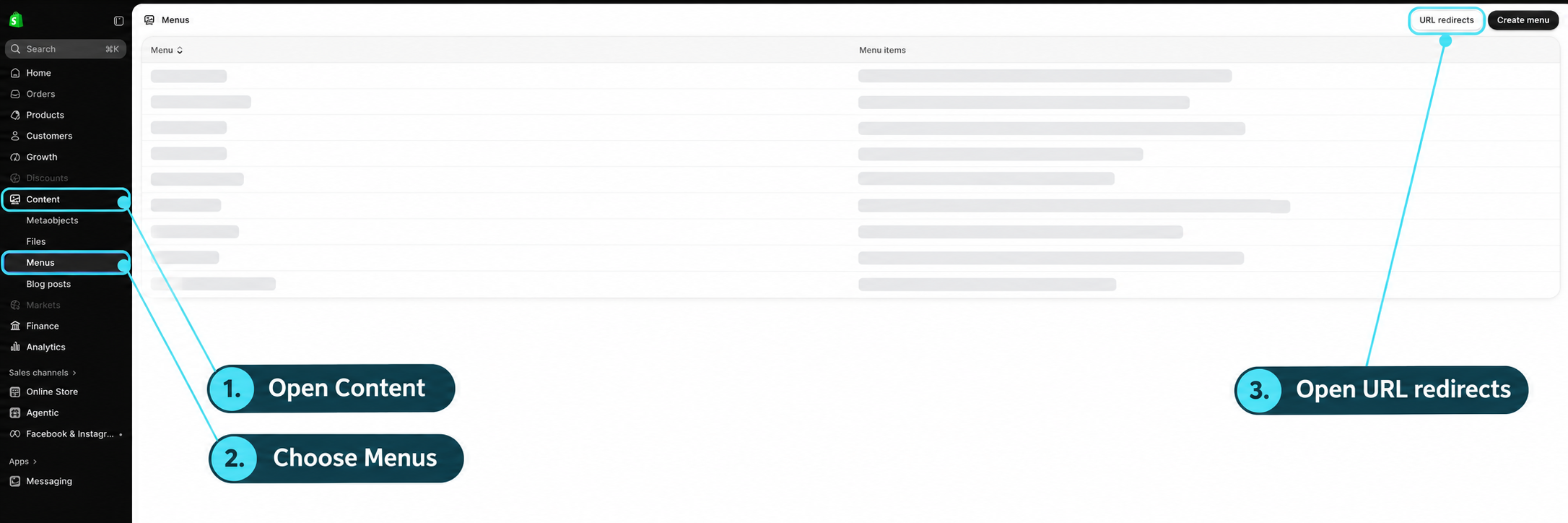
In the admin, follow Content → Menus → URL redirects, then choose Create URL redirect. Enter the old path in Redirect from, the replacement in Redirect to, and select Save redirect. An old URL that still serves a valid page will take precedence over a native redirect.
Find URL redirects in Shopify admin
3. Enter the old and new addresses

What happens when you change a handle?
In Shopify, handle simply means the last part of a page’s web address. For example, in /products/wool-hat, the handle is wool-hat. If you change it to merino-wool-hat, the product gets a different URL.
- Open the product, collection, blog post or page in Shopify admin.
- Find Search engine listing and select its pencil or edit control.
- Change the URL handle field. Avoid changing an established address without a clear reason.
- If the change is permanent, leave Create a URL redirect selected when that option appears, then save.
Example: URL handle
Create a URL redirect
Old: /products/wool-hat → New: /products/merino-wool-hat
The illustration shows the part you edit. It is an example layout, rather than a screenshot of every Shopify page type.
Shopify documents a preselected redirect option for blog post URL changes; collection settings also let you choose a redirect when changing the handle. Afterwards, find the old path in the saved URL redirects list and test it. A title edit alone does not necessarily change the address, and an old redirect may already point somewhere else.
Import a batch of redirects from your spreadsheet
Keep a master spreadsheet with notes, but make a separate import sheet containing only the two redirect columns. Shopify provides a sample CSV template and import instructions. Use its headings exactly, as illustrated below. Each row contains one old path and one replacement path. Shopify’s CSV uses a different format from the rules in our Squarespace redirects guide, so do not add arrows or a 301 number to these cells.
Redirect from,Redirect to
/products/wool-hat-old,/products/wool-hat-new
/collections/winter-accessories,/collections/cold-weather-accessories
/blogs/journal/old-buying-guide,/blogs/journal/updated-buying-guide
/pages/hat-care,/blogs/journal/how-to-care-for-wool-hats
For addresses on the same store, use paths beginning with /. Save the import sheet as a CSV, the comma-separated file type offered by Excel and Google Sheets, rather than uploading an Excel workbook. Check the exported file still has the correct two columns.
- Use Export on the URL redirects screen to back up existing entries first.
- Prepare a small CSV containing a few carefully checked examples from the page types you are changing.
- Choose Import → Add file, select the CSV, then Upload file.
- Review the import before selecting Import redirects. Investigate warnings or conflicting paths before proceeding.
- Find the imported records and test the old URLs. Once the sample works, import the remaining checked mappings without re-adding the sample rows.
Upload a redirect CSV

Do not assume an import has corrected overlapping old entries. Review the saved destinations, especially when your store already contains redirects from earlier handle changes. A rule being accepted is not proof that it leads to the right page.
Choose a destination that fulfils the original visit
A person following an old article link may want advice, while someone opening a discontinued product may want a comparable item. Preserve that purpose. A new article answering the original question can be a better destination for an old guide than a sales page.
- Compare the old product’s purpose with the replacement, not just its name.
- If using a collection, check that it contains suitable alternatives and explains the range.
- Avoid sending an old product to a broad homepage just to remove a 404 from a report.
- If several products or guides are being consolidated, review each old page before choosing one shared destination.
A redirect can work in the browser but still be a poor SEO match
For example, sending a detailed hat-care guide to a homepage full of unrelated products leaves the original question unanswered. Google warns that bulk redirects to an irrelevant destination can be treated as soft 404s, effectively recognising missing content despite the forwarding. A genuinely equivalent replacement also helps retain the value of links earned by the old page. Google’s migration guidance explains relevant destinations and link signals.
After Google revisits the URLs, Search Console’s Indexing → Pages report can flag Soft 404 entries. Check whether the replacement actually covers the old topic. Do not confuse this with Page with redirect, the usual exclusion for an old address that forwards elsewhere. Check the new page’s indexing separately. See Google’s explanation of the report.
This is where ecommerce SEO connects with the customer journey. Search visibility brings someone to the store, but the page they reach still needs to help them choose.
Understand what the redirect changes
A 301 tells browsers and search engines that an address has permanently moved. Visitors are sent to the destination automatically. A relevant replacement helps search engines associate the old page’s signals with the new URL, but it does not guarantee a ranking improvement.
A canonical tag has a different role: it indicates to search engines which URL is the preferred version of similar content. Visitors remain on the page they opened and do not normally see the tag. Use a redirect for a permanent move; review canonical tags when similar pages need to remain accessible. For example, Shopify product URLs reached through collection paths may need a canonical and internal-link review rather than a redirect that cannot override an active page.
Why a Shopify redirect may not work
| Issue | Check before adding another rule |
|---|---|
| The source is still active | Does the old product or collection URL still return a live page? |
| The path belongs to a reserved route | Is Shopify using it for a built-in function? |
| The address filters a collection by tag | Does it remain a valid filtered collection path even without matching products? |
| The destination changes again | Are there redirects in the target path as well? |
| A different old address was tested | Does the actual requested URL match the source entry? |
Shopify has native redirect restrictions, including reserved routes and collection tag-filter URLs. A rule cannot be assumed to override a valid storefront route. Keep the full requested address in your test record so a developer can investigate the actual behaviour.
Find, amend and back up saved redirects
Return to Content → Menus → URL redirects to see Shopify’s saved list. Use Filter items to find an old path, open its entry, change the destination and save. Test the old address again after editing. The list records the mapping, but it does not certify that the destination is relevant or that the old page is inactive.
| Redirect from | Redirect to |
|---|---|
| /blogs/journal/old-buying-guide | /blogs/journal/updated-buying-guide |
Keep an exported CSV and your own spreadsheet backup before major edits. In the master spreadsheet, add the page type, reason for the move, date changed and last test result alongside the two URL columns. Keep these notes out of the two-column import file. This gives you a useful change record when several people manage the store.
Check the response and the shopping experience
Test the old address in a fresh session, then inspect its response with a redirect checker or crawler. You want to understand the complete route, not only confirm that the browser eventually reaches some page.
- Confirm the old path redirects to the intended final URL.
- Check that the final page loads successfully and is available to customers.
- Look for unnecessary chains or a loop back to the original path.
- Update collection links, navigation and relevant articles to use the new address directly.
- Review unexpected changes in search landing pages, errors and store behaviour after launch.
Finish by repairing links you control. If your menus, collection descriptions and buying guides still link to old addresses, every visit takes an avoidable detour. Googlebot also has to request the redirect before it can fetch the destination. Across a large catalogue, repeated hops create unnecessary crawling work. Point these links straight at the final page, while keeping redirects for external links and old bookmarks. Google’s crawling guidance advises avoiding long redirect chains. This is good maintenance, not a guarantee of more crawling or better rankings.
Keep the mapping list alongside your content and catalogue change plan. It is particularly useful during seasonal range changes, a theme rebuild or a move between platforms. Our website migration SEO services cover that broader preparation and follow-up.
For changes across collections, product content and the storefront’s technical setup, see our Shopify SEO services.
Questions about Shopify redirects
Where are URL redirects in Shopify?
In Shopify admin, go to Content → Menus and select URL redirects at the top of the page. This opens the saved redirect list, where you can create, find, edit, import and export entries. The annotated screenshot earlier in this guide highlights the route.
How do I do a 301 redirect in Shopify?
From the URL redirects list, select Create URL redirect. Put the old storefront path in Redirect from and its relevant replacement in Redirect to, then save. For example, map an old buying guide to its updated article. Test the old address afterwards; it must no longer serve a valid page.
Why is my URL redirect not working in Shopify?
Shopify’s native redirect will not override a URL that still loads a valid page. Check that first, then confirm both paths are correct. Reserved routes and collection tag-filter URLs also have restrictions. If the rule looks correct, test in a fresh browser session because a previous permanent redirect may be cached.
Can I redirect hundreds of pages at once in Shopify?
Yes. Use Shopify’s CSV import with Redirect from and Redirect to columns. Back up existing redirects, test a small batch and check the results before importing the rest. Include products, collections, blog posts and guides in the mapping plan, with a relevant destination for each old URL.
Should I redirect discontinued products in Shopify?
Consider a redirect when a discontinued product has a close successor or a collection that genuinely provides suitable alternatives. If the product is only temporarily unavailable, keeping its page with accurate stock information may be more useful. Do not redirect every removed product to the homepage; assess the customer’s original need.
Platform references
- Shopify: creating and managing URL redirects
- Google: permanent and temporary redirects
- Google: canonical URLs
Platform interfaces and capabilities can change. Examples illustrate the approach; check the settings and output of your own website.