The problem, and how this guide helps
Your category page may already show the right products, but Squarespace’s native category settings can leave no room for a unique introduction, buying advice, FAQs or helpful links. That makes it harder to explain the range to customers and give search engines context about the page.
Our free builder helps you add those missing elements to the category URL you already use. Write your copy in simple fields, check the before-and-after preview, then copy the code into Squarespace. You do not need to create the category again or write the script yourself.
Open the free code builder · See the category editing restriction
If you prefer native Squarespace blocks, we also explain the separate landing-page alternative.
Why can’t I add text to my Squarespace category page?
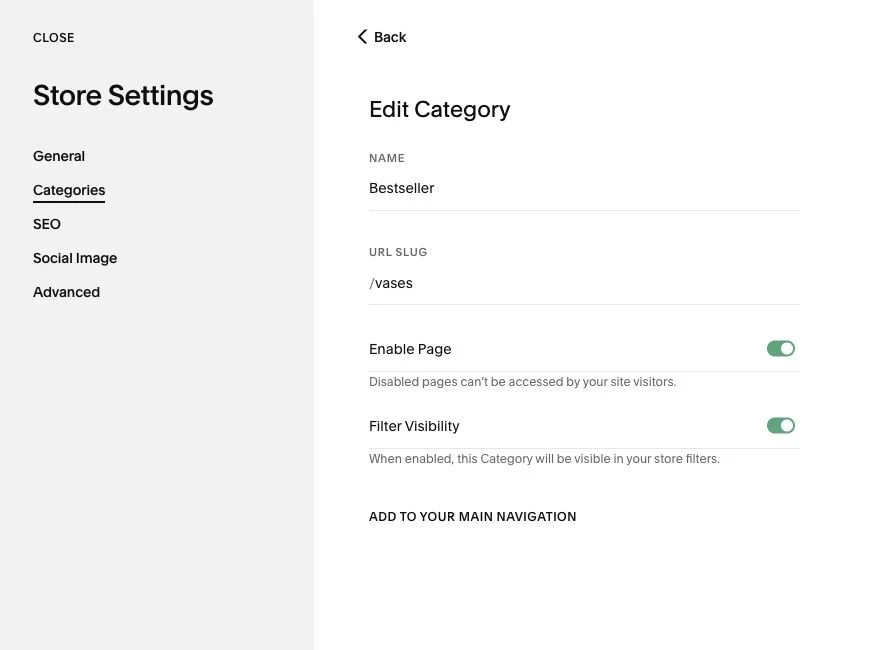
A generated Squarespace store category displays the products assigned to that range, but its category settings are not a normal page editor. In the version 7.1 example below, you can edit the category name, URL and visibility, but there is no text-block canvas for a unique category description, buying guide, FAQ section or contextual internal links.
This includes subcategories inside a parent category, such as Shop → Brands → Example Brand. The main store page may let you add shared sections, but that does not give each category or subcategory its own text editor. You need a way to show the right introduction, advice and FAQs only on the relevant category URL, while keeping its product listing.
The category content restriction in Squarespace
This screenshot of a Squarespace version 7.1 backend shows the category controls. There is no option here to add the unique text, FAQs or contextual links your range needs.
Generated store category: limited category settings
A useful category description helps customers understand the range and compare their options. Buying advice and FAQs answer questions that might otherwise stop someone choosing a product, while contextual links help them find relevant guides and related ranges. For SEO, this content gives search engines a clearer understanding of the category, the searches it is relevant to and how it connects to other pages on your website.
Write FAQs for customers, People Also Ask and AI Overviews
Useful category FAQs can help your page answer the specific questions behind a search. Clear, relevant answers give Google material it can draw on for People Also Ask results and AI Overviews, while helping shoppers make a confident choice.
- Use real buying questions. Check the People Also Ask results for your range, your customer enquiries and common product comparisons. Choose questions that belong on this category, such as sizing, compatibility or choosing between product types.
- Answer the question immediately. Start with a short, direct answer, then add the details someone needs to act on it. Keep each answer understandable on its own.
- Add specific, accurate detail. Explain the differences that matter for your products. Include measurements, requirements or examples where useful, and link to a relevant guide or product range for more detail.
- Keep the answers accessible. The builder adds expandable text FAQs that visitors can open on the page. Check the rendered content in Search Console and keep the advice up to date as your range changes.
Google’s AI search guidance emphasises helpful, reliable content and accessible text. No special AI markup is required. Its featured snippet guidance explains how extracted answers can also appear in People Also Ask.
Build your category content without editing code
This free builder creates the code that adds the content missing from your Squarespace category page. Use it to introduce your range, explain the differences between products, link to helpful guides and answer common buying questions. Your existing category address, product grid and main heading (H1) stay in place.
You do not need to write JavaScript or change settings inside a script. Enter your category address and write your content in the fields below. The before-and-after example shows where the new text, subheadings (H2), links and FAQs will appear. When you are ready, generate your code and paste it into Squarespace using the short instructions underneath.
The builder is loading. If it does not appear, use the example snippet below.
Before and after
This sample shop uses the same content-insertion code as your download. Edit the fields below to see your copy in the “After” example. Your own template’s fonts and spacing will differ.
H1: your existing page title · H2: added section headings · Underlined text: internal link · Expandable rows: FAQs
The builder’s introductory heading is an H2. It does not add a second H1 or rename your category. Change the category’s name through Squarespace if you need to change its main title.
Paste your code into a Squarespace Code Block
- Open the store page in Squarespace and choose Edit.
- Select an editable section above or below the product listing, then choose Add Block → Code.
- Keep HTML selected and Display Source Code switched off. Replace the sample “Hello, World!” with your complete generated snippet.
- Save the page. Open the exact category address outside editing mode and check the new content, links and FAQs.
Add the block once to a shared store section, not to individual products. The code checks the address you entered, so your category copy appears only on that category.
Your plan must support JavaScript in Code Blocks. Squarespace lists current availability in its Code Block guide. If the editor suppresses embedded scripts, check the saved page outside the editor; a private browser window can help.
We tested the generated code on a real Squarespace 7.1 store category as well as controlled examples. The walkthrough uses an HTML Code Block in a shared store section. Start with one category and check your template. For the checks and how to remove it, see test your page.
Watch: add category content with a Code Block
Follow the complete process on Rowan & Clay, our fictional Squarespace shop. See the category before, use the builder, paste the generated code into an HTML Code Block and check the finished page.
1 minute 53 seconds. Silent video with on-screen instructions. Use full screen to see the Squarespace controls clearly.
Check your page, then you’re done
- Check the introduction, products and FAQs on your phone and computer. Open each FAQ and follow the internal link.
- Visit another category and a product page, then use Back and Forward. The added copy should appear once, only on the category you chose.
- Use Search Console’s live URL inspection to check the rendered page includes your text. The code adds content with JavaScript, so it is not part of the original HTML response.
Method 2: a separate page with text and products
Yes, this method can show products. You create a normal page, add your own text and FAQs, then use a Summary Block to display products from your existing store, filtered to the category you choose. Product images and titles link through to the original product pages.
To add copy to an existing category or nested subcategory URL and keep its native store listing, use the Code Block method above. This second method creates a separate landing page. It does not unlock the text editor on the original category or automatically reproduce its category navigation, filters or pagination.
- Create a regular blank page with a suitable name and URL, such as
/ceramic-vases. - Add a descriptive H1 and introduction using native text blocks.
- Add a Summary Block. Select your existing store as its source, then use Filter Items → Category to select the intended range.
- Choose a grid layout and show product images and titles. Open the links to check they lead to the correct products.
- Add buying advice, contextual links and an Accordion Block for your FAQs. Set the page’s SEO title and description.
A Summary Block displays up to 30 items, and version 7.1 store summaries can filter by one category at a time. Check that the selected category or subcategory shows the complete intended range. Squarespace’s Summary Block guide covers product sources, category filters and the item limit.
Keep your original store and product records. Before directing customers to the new landing page, decide which page should be the main search destination and update the relevant navigation and internal links. Moving the original store to Not Linked does not prevent Google from indexing it.
Questions about adding Squarespace category content
Can I add SEO text to a Squarespace category page?
The available editing options depend on the Squarespace version and collection type. Where a generated category view is restrictive, a tailored landing page or suitable customisation can provide room for relevant introductions, buying guidance and FAQs. Check how it connects to the original category URL so the approach does not create competing destinations.
Where do I paste the Squarespace category content code?
Use the builder to enter your category address and copy, then generate the code. Install it once in an HTML Code Block in a shared store section where JavaScript is supported. Save and check the public category outside the editor.
Will this code change my existing category URL?
No. The snippet adds content to a matching address in the browser. It does not rename pages, create redirects or edit canonical tags. If you use the separate landing-page method instead, plan the original and new URLs together.
Can I use a Squarespace landing page for a product category?
Yes. A regular Squarespace page can introduce a product range with useful copy, buying advice and links or a filtered summary of products. It does not replace the underlying product records. Check the summary block’s item limit, range coverage, navigation and indexing before choosing it as the main category destination.
How do I make categories on Squarespace?
For a version 7.1 store, open its page settings and choose Categories to create the range structure. Assign products through the product editor’s Organization section. Earlier versions and blogs have different controls. Start with groups customers recognise, then check that each category displays the intended items.
How do I manage categories in Squarespace?
In a version 7.1 store, use page settings → Categories to reorder categories and open an individual category’s settings. Check its name, URL slug and navigation visibility. Manage which products appear through their category assignments. Navigation visibility and search indexing are different checks; hiding a category link is not a complete SEO plan.
What is the difference between tags and categories in Squarespace?
For Squarespace stores, categories primarily organise the browsing navigation, while tags can power filters for attributes or temporary groups. For example, “Lighting” could be a category and “spring sale” a tag. They help organise the catalogue, but adding labels alone does not create a useful, optimised landing page.
Platform references
- Squarespace: store categories and tags
- Squarespace: summary blocks
- Squarespace: Not Linked pages
- Squarespace: blog category visibility
- Google: canonicalisation
Platform interfaces and capabilities can change. Examples illustrate the approach; check the settings and output of your own website.